
Chrome does not have a "close everything, keep everything" button. Ctrl+Shift+T reopens the last tab you closed, one at a time, and only until you quit the browser. Bookmarking all tabs saves them, but into a flat folder you have to name and sort yourself. This guide covers the way Tab Closet does it, then the honest comparison with what Chrome and Brave already offer, so you can pick.
Save first, then close
"Without losing them" really means three things: every closed tab is recorded somewhere you can search, it survives a browser restart, and getting one back takes a click rather than a trawl through history. Tab Closet keeps that record in a vault stored by the browser on your machine. There is no account and no sync; the privacy policy lists exactly what leaves your computer when the AI naming is on (a tab's title, address and description, nothing else).
Close every idle tab in one click
This is the everyday move. It closes the tabs you have stopped using and leaves the ones you are working in.
- Click the Tab Closet icon in the toolbar. The popup says how many tabs qualify, for example "7 of 41 tabs idle for 24h+".
- Click Clean.
- The idle tabs close, get sorted into named folders, and the vault opens so you can see where each one went. A folder that just received tabs wears a green +N ring on its count.
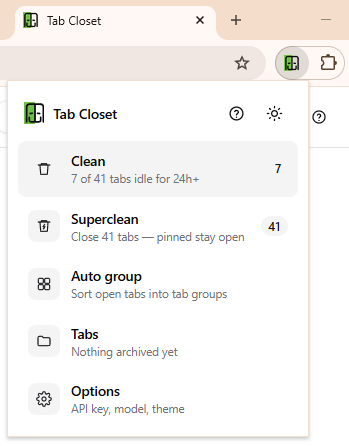
The popup counts the tabs a clean would close before you press anything.
What Clean never touches: pinned tabs, the tab you are looking at in each window, and anything that is not an ordinary web page (settings pages, the Web Store, extension pages). If the same address is open twice, the extra copy is closed first and the best one is kept, so the vault never holds a duplicate.
Change what counts as idle in Options → Cleaning → Close tabs unused for. It is 24 hours by default; set it to 2 for a tidy-as-you-go setup or to 72 if you like a long tail.
Close all tabs, including the ones you used today
For an end-of-day reset use Superclean. It closes every unpinned tab, idle or not, and files each one the same way Clean does.
- Open the popup and click Superclean once. The button arms and asks you to confirm.
- Click it a second time. Everything except pinned tabs and the vault itself closes and lands in folders.
Two clicks is deliberate. One click is how you lose an afternoon's research to a stray tap, and the second press is cheap insurance. Pages that cannot be archived, such as a new-tab page or a settings screen, are simply closed. If Superclean empties your last window, the vault opens in a fresh one so you are not left staring at nothing.
Close one tab into the closet
You do not have to wait for a tab to go stale. Right-click any tab in the tab strip and choose Send to Tab Closet. That tab is filed into the folder it fits best, or a new one if nothing fits, and closed on the spot. Select several tabs first (Ctrl-click, or Shift-click for a run) and the whole selection goes at once. Unlike Clean, this happily takes a pinned tab or the one you are looking at, because you asked for that one specifically.
Restore closed tabs
Everything Tab Closet closes is a click away in the vault. Open it from the popup with Tabs, or leave it open in a pinned tab.
- One tab: click it. It opens in a new tab and moves to the top of its folder as the most recently seen.
- A whole folder: hover the folder heading and click ↗. Every tab in it reopens as one Chrome tab group carrying the folder's name and colour.
- Find it first: press / to jump to the search box. It matches title, address, the one-line description and the folder name, so "that flight comparison" turns up even if you never saw the page title.

After a clean the vault opens on what just moved. Click a tab to bring it back.
Folders and tab groups are the same thing in two places. Close a group that the vault opened, or any group you named yourself, and its tabs go straight back into a folder of that name. That is the loop: reopen a folder to work on it, close the group when you are done, and nothing is lost in between.
How this compares with what Chrome and Brave already have
None of these are wrong choices. They solve narrower problems.
| Built-in option | What it does | Where it falls short |
| Reopen closed tab (Ctrl+Shift+T) | Brings back the last closed tab, then the one before it | One at a time, in reverse order, and the list does not survive quitting the browser |
| Bookmark all tabs (Ctrl+Shift+D) | Saves every open tab into one bookmark folder | You name and sort the folder yourself, get no descriptions, and still have to close the tabs afterwards |
| Saved tab groups | Keeps a named group on the bookmarks bar after you close it | Only for tabs you grouped by hand, and a closed saved group cannot be searched or edited by any extension |
| Memory Saver | Puts inactive tabs to sleep to free memory | The tabs stay in the strip; nothing gets tidier, and a sleeping tab reloads from scratch when clicked |
| History (Ctrl+H) | Records every page you visited | Thousands of entries with no grouping, so finding one tab from last Tuesday means remembering its title |
Tab Closet is the combination: it saves like a bookmark, closes like Superclean, groups like a tab group, and searches like a good history. If all you ever need is the last tab back, Ctrl+Shift+T is enough and you do not need an extension.
How to check this yourself in two minutes
The steps below are the ones we run after every release, on Chrome and Brave. The date this guide was last tested is under the title.
- Open six tabs of anything. Note two of their titles.
- Set Options → Cleaning → Close tabs unused for to 0 hours so every tab counts as idle, then open the popup: it should report five of six tabs eligible (the one you are on is protected).
- Click Clean. Five tabs close and the vault opens with them filed.
- Press /, type part of one of the titles you noted, and click the result. The page opens again.
- Quit the browser completely and start it again. Open the vault: the folders are still there.
- Hover a folder heading and click ↗, then close the tab group it made. The tabs are back in the folder.
- Set the threshold back to 24.
If any step does not behave this way, that is a bug, and the support form is where to send it with your browser version.
Limits worth knowing
- Only ordinary web pages are archived. Settings pages, the Web Store and other extensions' pages are closed by Superclean but not saved, because there is nothing there to save.
- A restored tab is the page, not the moment. Reopening loads the address fresh. Half-filled forms, scroll position and anything a page kept in memory are gone, and a page behind a login may ask you to sign in again.
- Pinned tabs are never closed by Clean or Superclean. Send one to the closet by hand if you want it archived.
- Idle times start when the extension is installed. Tabs that were already open are timed from the browser's own estimate, which is approximate for a day.
- Screenshots are optional. A clean does not photograph pages by default, since that would mean loading each one. Hover a tab in the vault and press the camera if you want a preview.
- The vault lives in your browser profile. Clearing browsing data, removing the extension or losing the profile removes the archive with it. Anything you genuinely cannot lose belongs in a bookmark or an export as well.
Related
- What every feature does, on the front page
- The free tier and AI credits: what naming folders costs, and when it is free
- Why Tab Closet is local-first
- All guides